If you’re like most small business owners, learning how to automate data entry with AI can save time on work you probably didn’t start your business to do. But somehow, it becomes part of your day.
A customer fills out a form. An invoice arrives by email. Someone sends you their contact information. A new lead needs to be added to your CRM.
None of these tasks is particularly difficult. The problem is that they keep happening.
Before long, you’re copying names, email addresses, phone numbers, invoice numbers, prices, dates, and other information from one place to another.
Five minutes here. Ten minutes there. And suddenly, you’ve spent a good part of your day doing work that doesn’t really require your time or expertise.
That’s where learning how to automate data entry with AI can make a real difference.
AI can help read incoming information, pull out the details you need, organize it, and move it into the systems you already use.
You don’t need to automate everything.
Start with repetitive data entry tasks you’re doing over and over again—the ones that take up time without requiring much judgment.
In this guide, we’ll look at how AI data entry automation works, what you can automate, which tools can help, and how to build a simple workflow for your small business.
Why Manual Data Entry Takes So Much Time
Manual data entry rarely feels like a major problem when you’re dealing with one piece of information.
Entering a customer’s phone number might take less than a minute. Adding one new lead to a spreadsheet is easy. Copying information from a single invoice isn’t difficult either.
The problem is doing those little tasks repeatedly.
One form comes in. Then an invoice. Then another customer needs to be added to your system.
Individually, these tasks don’t seem like much. Together, they can take up a surprising amount of time.
The Same Information Gets Entered More Than Once
Think about what happens when a customer fills out a form on your website.
They’ve already given you their name, email address, phone number, and information about what they need.
Then you enter that information into a spreadsheet.
Later, you may enter it again into your CRM, email marketing system, accounting software, or another business tool.
You’re entering information you already have.
AI and automation can help capture that information once and move it where it needs to go without requiring you to repeatedly copy and paste it.
Small Errors Can Create Bigger Problems
Manual data entry also creates opportunities for mistakes.
A number gets entered incorrectly. A name gets misspelled. Two digits in an invoice number get switched. An email address ends up in the wrong field.
One small mistake may not seem important until an email bounces, you can’t find a customer record, or your numbers don’t match.
AI can help extract and organize information more consistently while allowing you to review anything unusual.
The goal isn’t to blindly trust AI with every piece of data. It’s to reduce repetitive typing while keeping appropriate checks in place.
Data Entry Interrupts More Important Work
The biggest cost of manual data entry isn’t always the number of minutes it takes.
Sometimes it’s the interruption.
You might be working on an important customer project when an invoice arrives. You stop, enter the information, save it, and then try to remember where you left off.
Or you’re focused on sales when a new website form arrives and needs to be entered into your CRM.
Do that several times throughout the day and it becomes difficult to concentrate.
Automation allows routine information to keep moving in the background while you review the things that actually need your attention.
That’s the real value of automating data entry.
It’s not simply about typing faster. It’s about spending less time moving information around and more time doing work that actually needs you.
What Does AI Data Entry Automation Mean?
AI data entry automation means using artificial intelligence to help collect, understand, organize, and move information without manually typing every detail yourself.
Traditional automation works well when information always arrives in the same format.
For example, a website form might have separate fields for:
- First Name
- Last Name
- Email Address
- Phone Number
That information is already organized, so moving it into a spreadsheet or CRM is straightforward.
But business information doesn’t always arrive in neat fields.
A customer might send information in an email. An invoice could arrive as a PDF. A new lead might send their name, company, phone number, and what they’re interested in inside a few paragraphs.
That’s where AI becomes especially useful.
AI Can Read and Extract Information
Suppose a potential customer sends you an email:
Hi, I’m Sarah from Green Valley Landscaping. We’re interested in getting some help with our customer follow-up process. You can reach me at 555-0123.
You immediately understand what’s important.
AI can help identify those same details:
Name: Sarah
Company: Green Valley Landscaping
Phone: 555-0123
Interested In: Customer follow-up
Now the information isn’t buried inside an email.
It’s structured data your workflow can use.
AI Can Organize the Information
The next step is putting everything where it belongs:
Customer Name → Name field
Email Address → Email field
Phone Number → Phone field
Company → Company field
Service Interest → Lead category
This creates more consistent records and reduces the differences that occur when several people enter information manually.
Automation Can Move the Information
Once the information has been identified and organized, automation can send it to the appropriate business system.
A new lead might be added to your CRM.
Information from a form could be added to a spreadsheet.
Invoice details might move into an accounting workflow.
A customer inquiry could create a follow-up task.
The exact destination doesn’t matter as much as eliminating the need to manually move every piece of information yourself.
Keep Humans Involved When Needed
Automating data entry doesn’t mean every piece of information should move through your business without review.
AI may have trouble reading a number. Important information could be missing. Two customer records might appear to be duplicates.
A useful rule is:
Routine information → Process automatically
Missing, unusual, conflicting, or uncertain information → Human review
That gives you the efficiency of automation without giving up control.
What Types of Data Entry Can You Automate With AI?
The best place to start is with information that comes into your business repeatedly—the information someone is currently copying, typing, sorting, or moving between systems.
Several common areas are especially well suited to AI data entry automation.
Forms and Customer Inquiries
Website forms are one of the easiest places to start.
A potential customer may submit their:
- Name
- Email address
- Phone number
- Company
- Service they’re interested in
- Message
Instead of sending that information to an inbox and manually entering it into a CRM, automation can move it directly where it belongs.
AI can also analyze the customer’s message.
For example:
We’re looking for help automating appointment reminders for our dental office.
AI might classify that as:
Industry: Dental
Interest: Appointment automation
Lead Type: Potential customer
Now you’re collecting and organizing the inquiry at the same time.
Emails and Attachments
A tremendous amount of business information arrives through email.
Customers send information. Vendors send invoices. Employees send requests. Potential customers ask questions.
AI can help identify the important details and prepare them for another system.
A vendor invoice, for example, might produce:
Vendor: ABC Office Supply
Invoice Number: 38472
Amount: $426.18
Due Date: September 15
You’re still deciding what happens with the invoice. You’re simply eliminating repetitive copying.
Invoices and Receipts
Invoices and receipts often contain predictable information:
- Vendor name
- Invoice number
- Date
- Amount
- Tax
- Payment terms
- Expense category
The challenge is that every document doesn’t look the same. If expenses are the bigger bottleneck, see How to Automate Expense Tracking with AI (2026 Guide).
AI-powered document processing can identify information based on what it represents rather than relying entirely on its position on the page.
Financial information deserves additional validation, however. Before money changes hands or records are finalized, important amounts and fields should be checked.
For a deeper look at this workflow, see How to Automate Invoice Processing with AI (2026 Guide).
Leads and CRM Records
New prospects can come from your website, email, referrals, webinars, contact requests, and social media.
Instead of manually creating a CRM record every time, AI can identify the person’s contact information, company, request, and other useful details.
Automation can then create or update the CRM record.
You can also connect this process to your lead follow-up system so new leads automatically receive a next step.
For more on that process, see How to Automate Lead Follow-Up with AI (2026 Guide).
Spreadsheets
Spreadsheets are flexible and familiar, but they can create a lot of repetitive data entry.
AI and automation can help:
- Add rows from forms
- Standardize categories
- Clean inconsistent information
- Separate information into fields
- Identify missing information
- Summarize text
- Classify records
For example:
California
CA
Calif.
A person understands that these mean the same thing. AI can help standardize them into a single format so your data is easier to search, sort, and analyze.
Documents and PDFs
Applications, agreements, order forms, reports, and PDFs often contain information that needs to be entered into another system.
A service request might include:
- Customer Name
- Service Address
- Requested Date
- Type of Service
- Special Instructions
Instead of manually reading every document and entering each field, AI can extract those details and prepare them for review.
Start With High-Volume, Low-Risk Tasks
Your first automation should ideally be:
- Repetitive
- Frequent
- Easy to verify
- Based on clear rules
- Low risk if something needs correction
If you’re manually copying the same five pieces of information from twenty website forms every week, that’s an excellent place to start.
Automate the predictable workflow first. Then move into more complicated tasks.
Benefits of Automating Data Entry With AI
The biggest benefits come from reducing repetitive work and helping information move through your business more efficiently.
Save Time
If you’re repeatedly copying information from forms, emails, invoices, and other sources, those minutes add up.
Automation can handle much of that movement in the background.
Instead of manually copying every name, email address, invoice number, date, or amount, you can spend your time reviewing the records that actually require attention.
Reduce Manual Errors
Automation doesn’t guarantee perfect data.
But it can reduce repetitive typing and apply the same rules each time information is processed.
You can also build checks for:
- Missing email addresses
- Incomplete required fields
- Unexpected dollar amounts
- Unrecognized dates
- Possible duplicate customers
Anything questionable can be sent for review rather than automatically added to your system.
Keep Information Consistent
Imagine three employees categorizing the same type of lead as:
Website Inquiry
Web Lead
Website
Those may mean the same thing to you, but inconsistent categories make reporting harder.
Automation can standardize how information is entered so your records stay cleaner.
Process Information Faster
Manual entry creates delays.
A customer fills out a form in the morning, but nobody enters the information until later.
An invoice sits in an inbox waiting to be processed.
Automation can shorten that delay.
Once the information enters the right system, the next workflow can begin sooner too.
Make Your Data Easier to Use
Clean, consistent data makes it easier to:
- Search records
- Filter customers and leads
- Create reports
- Identify trends
- Trigger other automations
- Segment contacts
- Find missing information
You spend less time cleaning your data before you can use it.
Grow Without Adding the Same Amount of Administrative Work
More customers usually mean more forms, invoices, emails, orders, and records.
Without automation, growth creates additional administrative work.
AI can help your existing systems process more information without requiring someone to manually touch every record.
People can focus on exceptions, decisions, customer communication, and other work that actually requires judgment.
How AI Data Entry Automation Works
Most AI data entry workflows follow the same basic pattern:
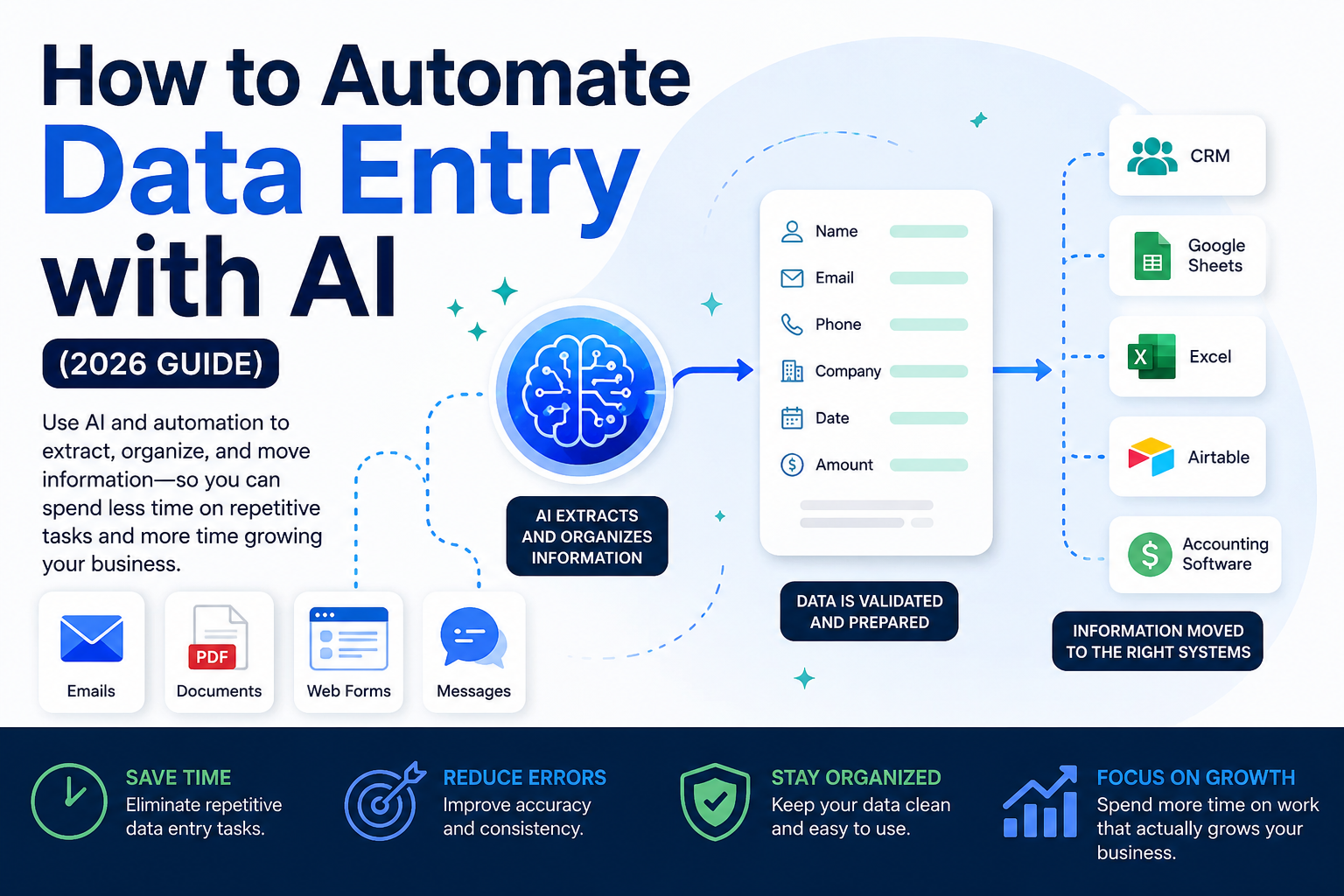
Receive → Read → Extract → Check → Transfer → Review Exceptions
Let’s break that down.
Step 1: Information Comes In
Every automation needs a trigger.
That might be:
- A website form submission
- A new email
- An invoice attachment
- An uploaded document
- A customer application
- A new order
For example:
New Contact Form Submitted → Start Workflow
Step 2: AI Reads the Information
If the information is already structured, this step may be simple.
But suppose a prospect emails:
Hi, I’m Mark from Westside Plumbing. We have six technicians and we’re looking for a better way to follow up with customers after service calls.
AI can interpret that message and identify the information your workflow needs.
Step 3: AI Extracts the Required Fields
You might extract:
Name: Mark
Company: Westside Plumbing
Company Size: 6 technicians
Interested In: Customer follow-up automation
For an invoice, you might instead extract:
- Vendor
- Invoice Number
- Invoice Date
- Amount
- Due Date
You decide which fields matter.
Step 4: Validate the Information
Before sending information into your business systems, check it.
For example:
- Is an email address present?
- Is the phone number in the correct format?
- Are required fields missing?
- Does this customer already exist?
- Is the amount in an expected format?
Then create two paths:
Everything Looks Good → Continue
Something Is Missing or Uncertain → Human Review
Step 5: Send It to the Destination
Once the information passes your checks, automation can send it to:
- A CRM
- Spreadsheet
- Accounting software
- Project management system
- Email marketing platform
- Customer database
- Task management system
For example:
New Lead Email → AI Extracts Information → Validation → CRM Record Created
Step 6: Handle Exceptions
Not every record will fit perfectly.
An invoice may be missing a number. A lead may omit their phone number. Two CRM records may look like duplicates.
Don’t make the system guess.
Use a path such as:
Something Doesn’t Look Right → Create Review Task → Notify Employee
AI handles predictable information. People handle exceptions.
Best AI Data Entry Tools for Small Businesses in 2026
Once you know what you want to automate, the next question is which tools to use.
For most small businesses, the best approach is to start with software you already use and add only what you need.
Zapier
Zapier is useful when you need information to move automatically between business applications.
A workflow might look like:
Customer Submits Form → AI Organizes Information → CRM Record Created → Follow-Up Task Created
It’s especially useful for businesses that want to connect existing applications without traditional programming.
Best for: Connecting apps and building straightforward automated workflows.
Make
Make offers visual control over multi-step workflows and branching logic.
For example:
Invoice Arrives → Extract Information → Check Amount → Create Accounting Record → Send Large Invoices for Approval
This flexibility becomes useful as automations grow more complicated.
Best for: Businesses that want greater control over multi-step workflows.
ChatGPT
ChatGPT can help when information isn’t already neatly organized.
It can help extract or organize fields such as:
- Name
- Company
- Phone
- Service Requested
It can also help summarize information, classify records, standardize text, and work with spreadsheet data.
ChatGPT may be one part of a larger workflow rather than the entire automation. Another tool may still be responsible for bringing information in and sending the structured output to your CRM or database.
Best for: Extracting, cleaning, summarizing, classifying, and organizing information.
Nanonets
Nanonets focuses more heavily on extracting information from documents.
That can be useful for businesses processing:
- Invoices
- Receipts
- Purchase orders
- Forms
- PDFs
- Other business documents
Best for: Businesses regularly extracting structured information from documents.
Google Sheets and Microsoft Excel
Don’t overlook tools you already know.
A workflow could be:
Website Form → AI Categorizes Submission → New Spreadsheet Row
or:
Customer Email → AI Extracts Details → Spreadsheet Updated
For many small businesses, a spreadsheet is perfectly adequate for a first automation.
Best for: Businesses that want a familiar and simple destination for automated data.
Airtable
Airtable can be useful when a traditional spreadsheet is becoming too limited but you don’t need a full CRM or complicated database.
You can organize:
- Customers
- Leads
- Projects
- Content
- Inventory
- Orders
Best for: Businesses needing more structure than a spreadsheet without moving into a more complex database system.
Which Tool Should You Choose?
Ask three questions:
- Where is the information coming from?
- Where does it need to go?
- What needs to happen in between?
If a form simply needs to create a spreadsheet row, you probably don’t need an elaborate AI system.
If you’re processing large numbers of documents in different formats, a specialized document-processing tool may make more sense.
For many businesses, a first workflow may be as simple as:
Form or Email → AI → Automation Platform → Spreadsheet or CRM
Before buying another subscription, also check the software you’re already paying for. Your CRM, accounting software, form builder, or other tools may already include automation features.
Start with the problem, not the software.
How to Automate Data Entry With AI Step by Step
Now let’s build a basic workflow.
Step 1: Choose One Repetitive Task
Look for information you’re entering manually over and over again.
For example:
- Website leads into your CRM
- Form submissions into a spreadsheet
- Information from emails
- Invoice details
- Customer requests
- Contact records
Choose something frequent and predictable.
Step 2: Identify the Source
Where does the information first enter your business?
It might be a:
- Website form
- Email inbox
- Spreadsheet
- Uploaded document
- Ecommerce order
- Customer portal
That becomes your automation trigger.
Step 3: Define the Information You Need
Don’t tell AI to find “important information.”
Specify the fields.
For a lead:
- First Name
- Last Name
- Email Address
- Phone Number
- Company
- Service Interest
- Customer Message
You could also ask AI to categorize fields such as:
Lead Category: New Business
Priority: Normal
Request Type: Appointment Automation
Only collect information you’ll actually use.
Step 4: Choose the Destination
Decide where the information needs to end up:
- CRM
- Google Sheets
- Excel
- Airtable
- Accounting software
- Project management system
- Another database
Now you have the beginning and end:
Website Contact Form → CRM
Step 5: Build the Basic Automation
Your initial workflow might be:
New Form Submitted
↓
AI Reads Submission
↓
Required Information Is Extracted
↓
CRM Record Is Created
Keep the first version simple.
Step 6: Add Validation Rules
Decide what needs to be checked.
For example:
Email Missing → Don’t Create Record
Phone Missing → Create Record but Flag It
Email Already Exists → Update or Review
Service Category Uncertain → Human Review
The rules will depend on your business and the consequences of an error.
Step 7: Test It
Don’t test only perfect submissions.
Try:
- A complete form
- A missing phone number
- An unusual company name
- A long customer message
- An email already in your CRM
Then check:
Did information go into the right fields?
Were duplicates prevented?
Did your validation rules work?
Did uncertain information go to the correct place?
Step 8: Create an Exception Queue
You don’t want someone reviewing every record.
Create one place for records that actually need attention.
That might be:
- A spreadsheet tab
- CRM status
- Task list
- Email folder
- Project management board
The workflow becomes:
Information Looks Good → Process Automatically
Information Is Missing or Unclear → Review Queue
Step 9: Document the Workflow
Write down what the automation does.
For example:
Trigger: New website contact form
AI Task: Extract contact information and categorize service interest
Destination: CRM
Required Fields: Name and email
Exception: Missing required information or uncertain category
Human Review: Check exception queue
This makes the workflow easier to maintain.
It’s also valuable if you eventually sell the business because the process isn’t trapped inside your head.
Step 10: Add the Next Workflow
Once the first automation works reliably, look for another repetitive task.
For example:
Website Contact Form → CRM
then:
Lead Email → CRM
then:
New CRM Lead → Follow-Up Workflow
Build gradually.
Every automation should solve a real problem.
What You Should and Shouldn’t Automate
Once your first workflow works, it’s tempting to automate everything.
Don’t.
The best tasks to automate are repetitive, predictable, and governed by clear rules.
Good examples include:
- Moving form submissions into a CRM
- Adding leads to spreadsheets
- Extracting standard document information
- Categorizing incoming requests
- Creating records from emails
- Standardizing categories
- Identifying missing information
Keep People Involved When Judgment Is Required
Suppose a customer writes:
We’ve worked with you for years, but our latest order was incorrect and I’m not sure why we’re being charged for the replacement.
AI might identify the customer, order number, and issue.
It could classify the message as a billing problem.
But should it automatically decide whether the customer receives a refund?
Probably not.
Let AI organize the information. Let people make decisions requiring judgment.
Be Careful With Financial Information
AI can help extract information from invoices and receipts, but financial workflows should have stronger safeguards.
Imagine an $845 invoice being read as $8,450.
Consider rules that:
- Check totals
- Detect duplicate invoices
- Verify invoice numbers
- Flag unusual amounts
- Require approval above certain thresholds
- Send uncertain information for review
Protect Sensitive Information
Before automating customer, employee, financial, or other sensitive information, understand:
- What you’re collecting
- Why you need it
- Which systems receive it
- Who can access it
- Where it’s stored
- How long it’s retained
- Which privacy, security, legal, or contractual requirements apply
Only use information the workflow actually needs.
Don’t Let AI Guess
If AI isn’t sure, it shouldn’t invent an answer.
If an invoice contains two dates and the system can’t determine which one is the invoice date:
Invoice Date → Needs Review
Accurate but incomplete information is better than confident-looking information that’s wrong.
Don’t Automatically Overwrite Important Data
Suppose an existing customer submits a different phone number.
Should your CRM automatically replace the number already on file?
Not necessarily.
A safer rule may be:
New Information Matches Existing Record → Continue
New Information Conflicts → Review
Don’t Automate a Messy Process
Automation won’t fix a process that doesn’t make sense.
If customer information is scattered across five spreadsheets, two inboxes, and a CRM—and nobody knows which record is current—fix that first.
Decide where information should live. Standardize important categories. Remove unnecessary duplication.
Then automate.
Common AI Data Entry Mistakes to Avoid
A bad automation can move incorrect information just as quickly as good information.
Here are the mistakes that matter most.
Mistake #1: Automating Everything at Once
Start with one process.
Get it working. Test it. Let it run. Then add another workflow.
Every additional connection creates another potential failure point.
Mistake #2: Automating Messy Data
If your CRM has categories such as:
New Lead
New Prospect
Potential Customer
and they all mean the same thing, standardize them before automating new records.
Don’t automate the mess.
Mistake #3: Giving AI Vague Instructions
Don’t say:
Find the important information.
Instead, specify:
- Customer Name
- Email Address
- Phone Number
- Company
- Service Requested
Clearly defined fields are easier to test and validate.
Mistake #4: Skipping Validation
Check important fields before accepting information.
For example:
- Required fields
- Email format
- Dates
- Dollar amounts
- Duplicate records
Think of validation as the checkpoint between AI extracting information and your business accepting it.
Mistake #5: Creating Duplicate Records
Before creating a new customer, check whether that person already exists.
An email address, customer number, or another reliable identifier can often help.
Then use:
No Existing Record → Create
Existing Record → Update or Review
Mistake #6: Filling In Missing Information
If information is missing, leave it missing.
Don’t let AI invent a phone number, date, company name, or other field simply to make a record look complete.
Mistake #7: Overwriting Good Information
New information isn’t automatically better information.
Decide which fields can safely update automatically and which conflicts require review.
Mistake #8: Ignoring Exceptions
Customers make typos. Documents change format. Vendors redesign invoices. Required information goes missing.
Plan for exceptions:
Problem Detected → Review Queue → Notify Someone
Mistake #9: Making the Workflow Too Complicated
More steps don’t necessarily create better automation.
A workflow as simple as:
Form → Extract → Validate → CRM
can eliminate a lot of repetitive work.
Add steps only when they solve a specific problem.
Mistake #10: Forgetting Privacy and Security
Don’t send every field through every application simply because you can.
Know which information is being transferred, which systems receive it, and who can access it.
Mistake #11: Assuming It’s Working
An automation can run without obvious errors while quietly putting information in the wrong fields or creating duplicates.
Periodically inspect records and exceptions.
If the same problem keeps happening, fix the workflow rather than repeatedly correcting individual records.
Mistake #12: Measuring Only Time Saved
Time matters, but also measure:
- Accuracy
- Consistency
- Duplicate records
- Exceptions
- Processing speed
- Manual cleanup
An automation that saves two hours but creates an hour and a half of cleanup isn’t much of a win.
Mistake #13: Not Documenting the Workflow
Write down the trigger, AI task, destination, validation rules, exceptions, and human review process.
If you’re building an online business you may eventually sell, documentation is especially valuable.
A buyer isn’t just buying a website. They’re buying the systems and processes behind it.
The less the operation depends entirely on you, the easier it is for another person to understand and run.
A Simple AI Data Entry Workflow Example
Imagine you own a local service business and customers request quotes through a website form.
Right now, every submission arrives by email.
You open the email, read it, create a CRM record, determine which service the customer needs, and create a follow-up task.
You’re doing essentially the same thing every time.
Here’s how you could automate it.
Step 1: Customer Submits the Form
A potential customer submits:
Name: Jennifer Lee
Email: jennifer@example.com
Phone: 555-0148
Message: We need weekly cleaning for a small office with about 15 employees. We’d like to start next month.
The submission triggers your workflow automatically.
Step 2: AI Organizes the Information
AI can turn Jennifer’s message into:
Customer: Jennifer Lee
Email: jennifer@example.com
Phone: 555-0148
Service: Commercial Cleaning
Frequency: Weekly
Business Size: Approximately 15 employees
Timeline: Next Month
Now the information is ready for your sales process.
Step 3: Validate It
Your workflow checks:
- Is a name present?
- Is there a valid email?
- Does the email already exist in the CRM?
- Was the requested service identified?
If everything looks good, continue.
If something is missing or uncertain, send it to your review queue.
Step 4: Create the CRM Record
Jennifer’s record could automatically contain:
Lead Source: Website
Service: Commercial Cleaning
Status: New Lead
Requested Start: Next Month
You can also keep the original message for context.
Step 5: Create a Follow-Up Task
The system could then create:
Task: Contact Jennifer about commercial cleaning quote
Assigned To: Sales
Due: Today
Or the new record could enter your existing lead follow-up workflow.
Step 6: Handle Incomplete Requests
Another customer submits:
Need some work done. Call me.
AI shouldn’t guess which service they need.
Instead:
Status: Needs Review
A person can then look at the inquiry and determine what happens next.
The Complete Workflow
The entire process becomes:
Customer Submits Website Form
↓
AI Extracts and Organizes Information
↓
Information Is Validated
↓
CRM Record Is Created
↓
Follow-Up Task Is Created
↓
Uncertain Information Goes to Human Review
You can use the same basic pattern elsewhere:
Invoice → Extract → Validate → Accounting Workflow
Receipt → Extract → Categorize → Expense Record
Support Message → Identify Customer and Issue → Support Ticket
For a complete support workflow, see How to Automate Customer Support with AI (2026 Guide).
Lead Email → Extract Contact Information → CRM → Follow-Up
The basic pattern stays the same:
Receive → Extract → Validate → Store → Act → Review Exceptions
Instead of asking, “What can AI do?” ask:
What information am I entering over and over again?
That’s usually the better place to start.
Frequently Asked Questions
What Is AI Data Entry Automation?
AI data entry automation uses AI and automation tools to collect, organize, extract, and move information without requiring someone to manually type or copy every field.
For example, AI can identify a customer’s name, email, company, phone number, and reason for contacting you from an email. Automation can then place those details into the appropriate CRM fields.
Can AI Really Automate Data Entry?
Yes, especially for repetitive information with clearly defined fields.
AI can help extract information from:
- Emails
- Website forms
- Documents
- PDFs
- Invoices
- Receipts
- Customer messages
Automation can then send that information to spreadsheets, CRMs, accounting software, and other business systems.
How Accurate Is AI Data Entry?
Accuracy depends on the information, document quality, tool, and instructions being used.
Clear, predictable information is generally easier to process than blurry documents or ambiguous messages.
Don’t design your workflow around the assumption that AI will be correct 100% of the time.
Use validation and exception handling instead.
Do I Need to Know How to Code?
Not necessarily.
No-code and low-code automation platforms can connect many common business applications.
A basic workflow might simply be:
Website Form → AI → CRM
Start simple and increase complexity only when there’s a reason.
Can AI Enter Data Into Excel or Google Sheets?
Yes.
For example:
New Form Submission → AI Organizes Information → New Spreadsheet Row
AI can also help standardize categories, clean information, summarize text, and organize records before they’re added.
If spreadsheets already work for your business, you don’t necessarily need to replace them.
Can AI Extract Data From PDFs?
Yes, depending on the document and tools you’re using.
AI-powered document processing can help extract fields such as:
- Vendor
- Invoice Number
- Invoice Date
- Amount
- Due Date
Important information—especially financial data—should still be validated before it’s accepted or acted on.
Can AI Extract Information From Emails?
Yes.
Email is one of the most useful sources for data entry automation because so much business information arrives there.
A workflow might be:
Lead Email → Extract Contact Information → Create CRM Record → Start Follow-Up
If email itself is taking up too much of your time, see How to Automate Customer Email Responses with AI (2026 Guide).
Is AI Data Entry Safe?
It can be, but you need to understand which information you’re processing and which systems receive it.
Before automating sensitive information, consider access, storage, retention, privacy, security, and any legal or contractual requirements that apply to your business.
Only send information through systems that actually need it.
What Happens When AI Gets Something Wrong?
Your workflow should have an exception process.
For example:
Required Information Missing → Review
Information Conflicts With Existing Record → Review
AI Isn’t Sure About a Field → Review
Unusual Dollar Amount → Review
A workflow that recognizes uncertainty and asks for human review is working correctly.
Will AI Data Entry Replace Employees?
For most small businesses, the more useful question is which tasks AI can reduce.
Copying names, email addresses, invoice numbers, dates, and other information between systems usually doesn’t require much judgment.
Automation can handle more of that repetitive work while employees focus on customers, problem-solving, exceptions, and decisions.
How Much Does AI Data Entry Automation Cost?
Costs vary depending on your tools, volume, number of workflows, and whether you need specialized document processing.
Before buying anything, estimate how much time the automation could save.
Also check the software you’re already paying for. Your existing CRM, form builder, spreadsheet, accounting platform, or other tools may already provide some of the automation you need.
What’s the Best AI Data Entry Tool for a Small Business?
There isn’t one best tool for every business.
If you need to move information between applications, an automation platform may be the best fit.
Businesses processing large numbers of invoices or PDFs may benefit more from a document extraction tool.
For information from emails, messages, spreadsheets, or other unstructured sources, a general AI tool can be useful.
Start with the workflow you want to improve and choose the simplest tool that solves that problem.
Final Thoughts
AI data entry automation doesn’t need to be complicated.
Start by finding one repetitive task where you’re manually moving the same type of information from one place to another. For more ideas on connecting AI to everyday business tasks, see 10 AI Workflows Every Small Business Should Automate in 2026.
Then:
Receive the information.
Use AI to extract and organize it.
Validate the important fields.
Send clean information to the right system.
Send exceptions to a person.
Once that workflow works reliably, automate the next repetitive task.
Over time, those small improvements can create a much more efficient business.
The goal isn’t to remove people from your processes.
Related Articles
Want to automate more repetitive work in your small business?
These guides can help you build your next workflow:
- 10 AI Workflows Every Small Business Should Automate in 2026
- How to Automate Customer Email Responses with AI (2026 Guide)
- How to Automate Appointment Scheduling with AI (2026 Guide)
- How to Automate Meeting Notes with AI (2026 Guide)
- How to Automate Invoice Processing with AI (2026 Guide)
- How to Automate Social Media for Small Businesses with AI (2026 Guide)
- How to Automate Expense Tracking with AI (2026 Guide)
- How to Automate Lead Follow-Up with AI (2026 Guide)
- How to Automate Customer Support with AI (2026 Guide)
Each guide walks you through another practical way to use AI to reduce repetitive work, create better systems, and give yourself more time to run and grow your business.